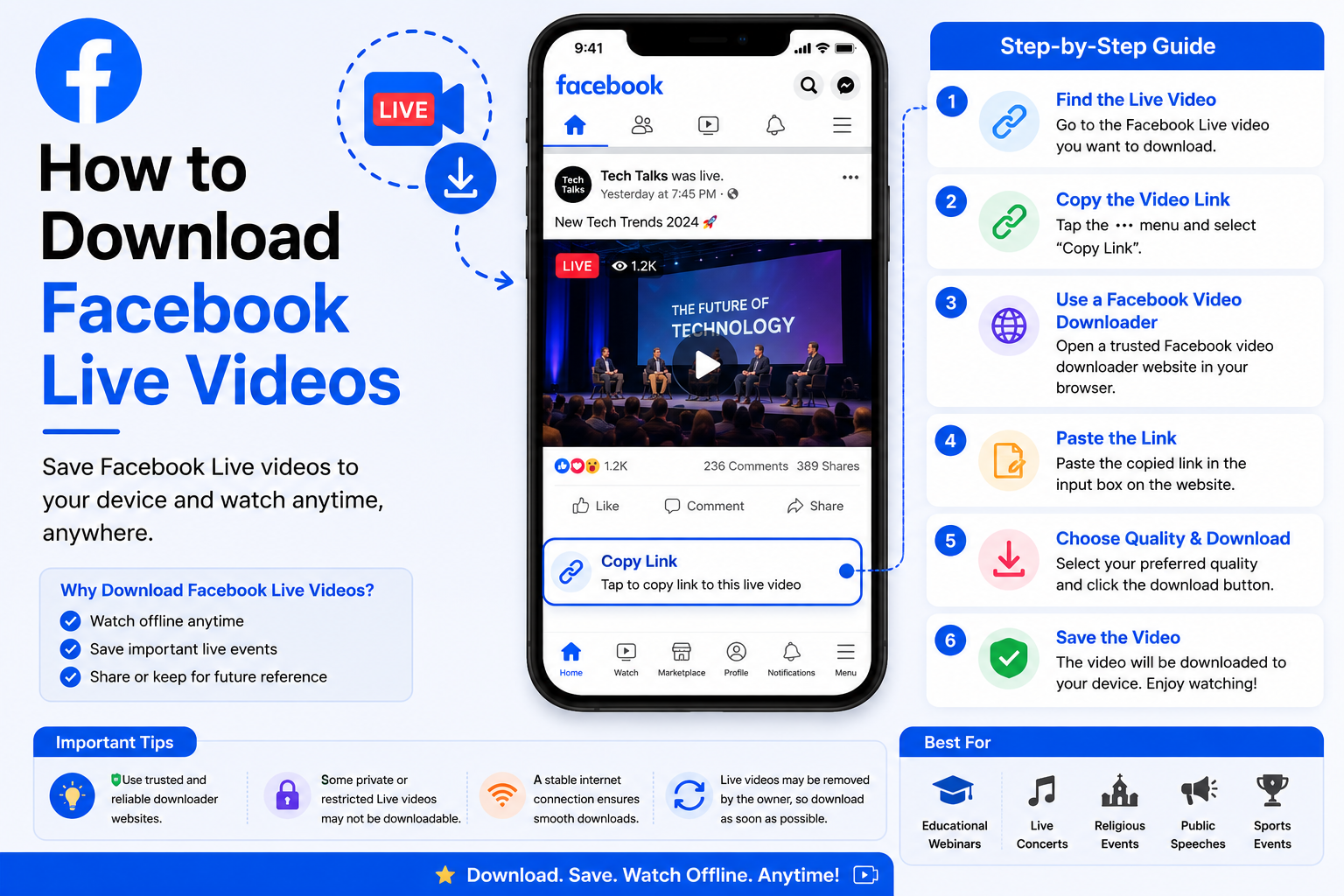
How to Download Facebook Live Videos
Facebook Live allows creators, businesses, organizations, and individuals to broadcast events in real time. Live videos are commonly used for webinars, product launches, educational sessions, interviews, gaming streams, worship services, and community events. After a live broadcast ends, many creators keep the recording available on Facebook so viewers can watch it later.
If a Facebook Live video has been published and is publicly accessible, Clipyfi provides a simple way to download it directly from your browser. There is no software to install, no browser extensions required, and no registration needed. Simply copy the Facebook Live video link, paste it into Clipyfi, and download the available recording in just a few steps.
Clipyfi can process publicly available Facebook Live recordings after the live stream has ended and the recording is available. Active live broadcasts cannot be downloaded while they are still streaming.
Why Download Facebook Live Videos?
Downloading a published Facebook Live recording allows you to watch important content offline whenever you need it. This is especially useful for educational sessions, business presentations, and long-form events.
- Watch Live recordings without an internet connection.
- Save webinars and online classes.
- Keep business presentations for future reference.
- Store educational sessions for offline learning.
- Reduce repeated mobile data usage.
- Access public Live recordings while travelling.
Before You Begin
Before downloading a Facebook Live recording, check the following requirements.
- The live broadcast must have ended.
- The recording must be publicly available.
- Copy the complete Facebook Live video URL.
- Use a modern web browser.
- Maintain a stable internet connection.
Step 1 — Open the Facebook Live Recording
Locate the published Facebook Live recording that you want to download. Confirm that the recording is available publicly and can be viewed without restrictions.
Step 2 — Copy the Video Link
Use Facebook's Copy Link or Share option to copy the complete URL of the Live recording.
Always copy the complete URL to ensure Clipyfi can identify the recording correctly.
Step 3 — Paste the Link into Clipyfi
Visit the Clipyfi Facebook Downloader page and paste the copied Live video URL into the downloader input field.
Click the Download button and allow Clipyfi to process the recording.
Step 4 — Save the Recording
Once processing is complete, choose the available download option and save the recording directly to your device for offline viewing.
Long Facebook Live recordings may require a little more processing time than shorter videos because of their larger file sizes.
Benefits of Using Clipyfi
- No Facebook login required.
- No software installation.
- Works on desktop and mobile devices.
- Fast processing for public Live recordings.
- Simple and beginner-friendly interface.
- Secure HTTPS connection.
Supported Facebook Live Recordings
Clipyfi supports Facebook Live recordings that have already finished streaming and remain publicly available on Facebook. The available quality depends on the original upload made by the creator.
- Public Facebook Live recordings.
- Live videos shared by public Pages.
- Creator Live recordings.
- Business and educational broadcasts.
- High-quality recordings when available.
Common Download Problems
The Live Stream Is Still Active
If the Facebook Live broadcast is still streaming, the recording is not yet available for download. Wait until the broadcast ends and the creator publishes the recording.
The Recording Is Private
Facebook privacy settings may restrict access to Live recordings. Only publicly available recordings can be processed by Clipyfi.
The Recording Was Deleted
If the creator removes the recording after the broadcast ends, it will no longer be available for downloading.
Processing Takes Longer
Facebook Live recordings are often much longer than standard videos. Larger files naturally require additional processing time before download options become available.
Clipyfi cannot download active Facebook Live streams. The Live broadcast must be finished and publicly available before it can be processed.
Best Practices
- Wait until the Live stream has ended.
- Copy the complete Facebook URL.
- Use a stable internet connection.
- Avoid refreshing the page while processing.
- Download only publicly available recordings.
- Respect copyright and creator ownership.
Frequently Asked Questions
Can I download a Facebook Live video while it is streaming?
No. Live broadcasts must finish before a recording becomes available for download.
Can I download Live recordings from private accounts?
No. Clipyfi only supports publicly available Facebook Live recordings.
Do I need a Facebook account?
No. Public Live recordings can be processed without signing into Facebook.
Can I use Clipyfi on my phone?
Yes. Clipyfi works on Android phones, iPhones, tablets, laptops, and desktop computers.
Why is my Live recording taking longer to process?
Long broadcasts contain significantly more video data than shorter clips, so additional processing time may be required.
Does Clipyfi reduce video quality?
No. Clipyfi provides the highest publicly available quality available from the original recording whenever possible.
Is Clipyfi free?
Yes. Clipyfi allows users to download publicly available Facebook Live recordings without registration.
Is it safe to use Clipyfi?
Yes. Clipyfi works entirely through your browser and never requests your Facebook password.
Conclusion
Downloading publicly available Facebook Live recordings with Clipyfi is simple and convenient. After the live broadcast has ended, copy the recording link, paste it into the downloader, and save it to your device for offline viewing. Whether you're saving webinars, educational sessions, business presentations, or public events, Clipyfi provides a reliable browser-based solution.
If you're looking for more tutorials and troubleshooting guides, continue exploring the Clipyfi Help Center for Facebook, Instagram, YouTube, and other supported platforms.
Visit the Clipyfi Help Center for additional tutorials, troubleshooting articles, and answers to frequently asked questions.