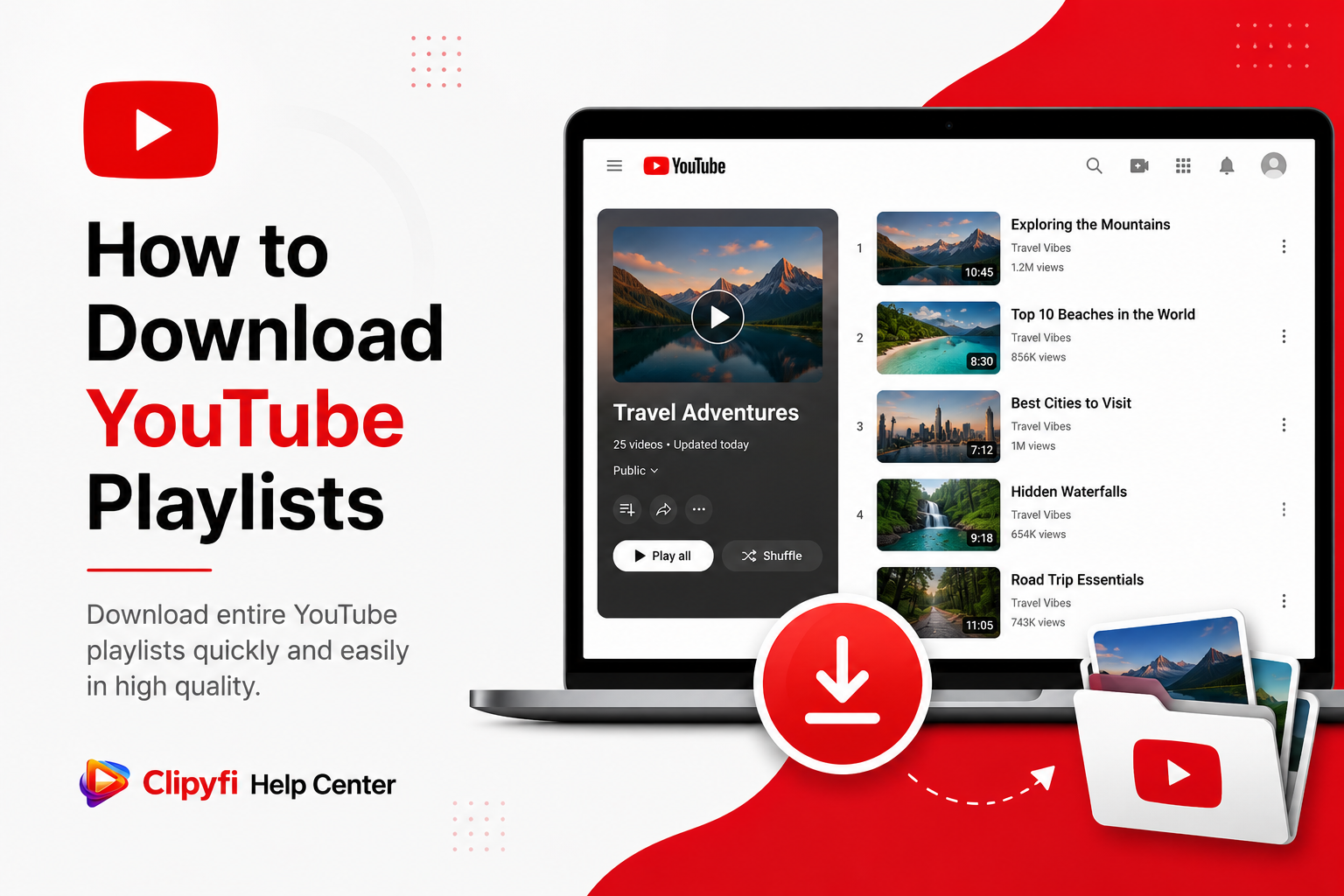
How to Download YouTube Playlists
YouTube playlists make it easy to organize videos into a single collection. Whether it's an educational course, a music compilation, a workout routine, or a tutorial series, playlists allow viewers to watch related videos without searching for each one individually.
There are times when you may want offline access to videos from a playlist, especially when travelling, studying, or working in areas with limited internet connectivity. Clipyfi helps you quickly process publicly available YouTube playlist links and makes downloading individual videos from supported playlists simple and convenient.
What is a YouTube Playlist?
A playlist is a collection of videos grouped together under one URL. Creators often use playlists to organize tutorials, lectures, podcasts, music albums, product reviews, and many other types of content.
Instead of opening every video separately, a playlist lets you move through related content in order.
Why Download Videos from a Playlist?
- Watch educational courses while offline.
- Save tutorial series for future learning.
- Keep travel videos available during trips.
- Reduce repeated mobile data usage.
- Access your favorite public content without depending on internet availability.
Clipyfi is designed to work with publicly accessible YouTube playlist links. Private or unavailable playlists cannot be processed.
Before You Begin
Before downloading videos from a playlist, make sure everything is ready.
- Copy the correct playlist URL.
- Use a modern web browser.
- Maintain a stable internet connection.
- Ensure the playlist is publicly available.
- Have enough storage space for downloaded videos.
Step 1 — Open the Playlist
Visit YouTube and open the playlist containing the videos you want to save. Verify that all videos you wish to access are publicly available.
Step 2 — Copy the Playlist URL
Copy the playlist URL directly from your browser's address bar. You can also use the Share option if one is available.
Always ensure the complete playlist URL is copied because incomplete links may prevent Clipyfi from identifying the playlist correctly.
Step 3 — Paste the Link into Clipyfi
Open Clipyfi in your browser and paste the copied playlist URL into the downloader input box.
Click the Download button and allow Clipyfi to analyze the playlist information.
Step 4 — Select the Video You Want
Once processing is complete, choose the video you want to download along with the preferred quality if multiple download options are available.
Depending on the playlist, you may repeat the process for other publicly available videos within the same playlist.
Large playlists may contain dozens or even hundreds of videos. Download only the videos you actually need to save storage space and reduce processing time.
Benefits of Using Clipyfi
- No software installation.
- No browser extensions.
- Fast playlist processing.
- Works on Windows, macOS, Android, iPhone, and tablets.
- Clean and beginner-friendly interface.
- Completely browser based.
Supported Playlist Types
Clipyfi is designed to work with publicly available YouTube playlists. Depending on the playlist and the original videos it contains, different download options may be available.
- Educational courses and tutorials.
- Music playlists.
- Technology and programming series.
- Travel and lifestyle collections.
- Fitness and workout playlists.
- Cooking and recipe collections.
If a playlist contains private, deleted, or unavailable videos, those videos cannot be processed and may not appear as downloadable options.
Things to Consider Before Downloading
Large playlists can contain dozens or even hundreds of videos. Downloading everything at once may not always be necessary. Instead, consider selecting only the videos that are most useful to you.
- Choose the videos you actually need.
- Monitor available storage on your device.
- Download over a stable Wi-Fi connection whenever possible.
- Use HD quality only when you need higher resolution.
A long playlist downloaded in HD quality can consume several gigabytes of storage. Check your available space before downloading multiple videos.
Common Playlist Download Problems
The Playlist Cannot Be Found
Verify that you copied the complete playlist URL. Missing characters or an incomplete link may prevent Clipyfi from identifying the playlist correctly.
The Playlist Is Private
Private playlists are not publicly accessible and therefore cannot be processed by Clipyfi.
Some Videos Are Missing
Certain videos within a playlist may have been removed, deleted, or made private by their creators. Those videos will not be available for download.
Processing Takes Longer Than Expected
Large playlists naturally require more processing time because Clipyfi needs to analyze multiple videos before presenting available download options.
Best Practices
- Always copy the complete playlist URL.
- Download only publicly available content.
- Use a reliable internet connection.
- Choose video quality based on your storage capacity.
- Keep your browser updated for the best compatibility.
- Avoid refreshing the page while processing is in progress.
Frequently Asked Questions
Can I download an entire playlist at once?
Depending on the downloader features available in Clipyfi, playlist support may allow processing of playlist links and downloading available videos. The available options may vary based on the playlist and supported functionality.
Can I download only one video from a playlist?
Yes. If multiple videos are available, you can choose the specific video you want instead of downloading everything.
Why are some playlist videos unavailable?
Videos that have been deleted, made private, or restricted by the uploader cannot be processed because they are no longer publicly available.
Does Clipyfi work on mobile devices?
Yes. Clipyfi works on Android phones, iPhones, tablets, laptops, and desktop computers using a supported web browser.
Do I need to install any software?
No. Everything works directly in your browser without requiring additional software or browser extensions.
Is Clipyfi free?
Yes. Clipyfi allows users to process publicly available playlist links without creating an account.
Can I download HD videos from playlists?
If the original video was uploaded in HD quality, Clipyfi will display the highest available resolution supported for that video.
Is my privacy protected?
Clipyfi is designed to process publicly available media without requiring access to your personal YouTube account. For more information, please review our Privacy Policy.
Conclusion
YouTube playlists are an excellent way to organize related videos, whether they are educational lessons, music collections, or tutorial series. Clipyfi makes it easy to work with publicly available playlist links and download the videos you need directly from your browser without installing additional software.
By following the recommendations in this guide, checking the playlist URL carefully, and selecting only the videos you need, you can enjoy a faster and more organized download experience.
Visit the Clipyfi Help Center for additional tutorials, troubleshooting guides, and answers to frequently asked questions about YouTube, Instagram, and Facebook downloads.
Continue Reading
- How to Download YouTube Videos
- How to Download YouTube Shorts
- How to Download YouTube Audio (MP3)
- Fix "Unable to Download" YouTube Videos
We hope this guide helped you understand how to download publicly available YouTube playlist videos using Clipyfi quickly, safely, and efficiently.