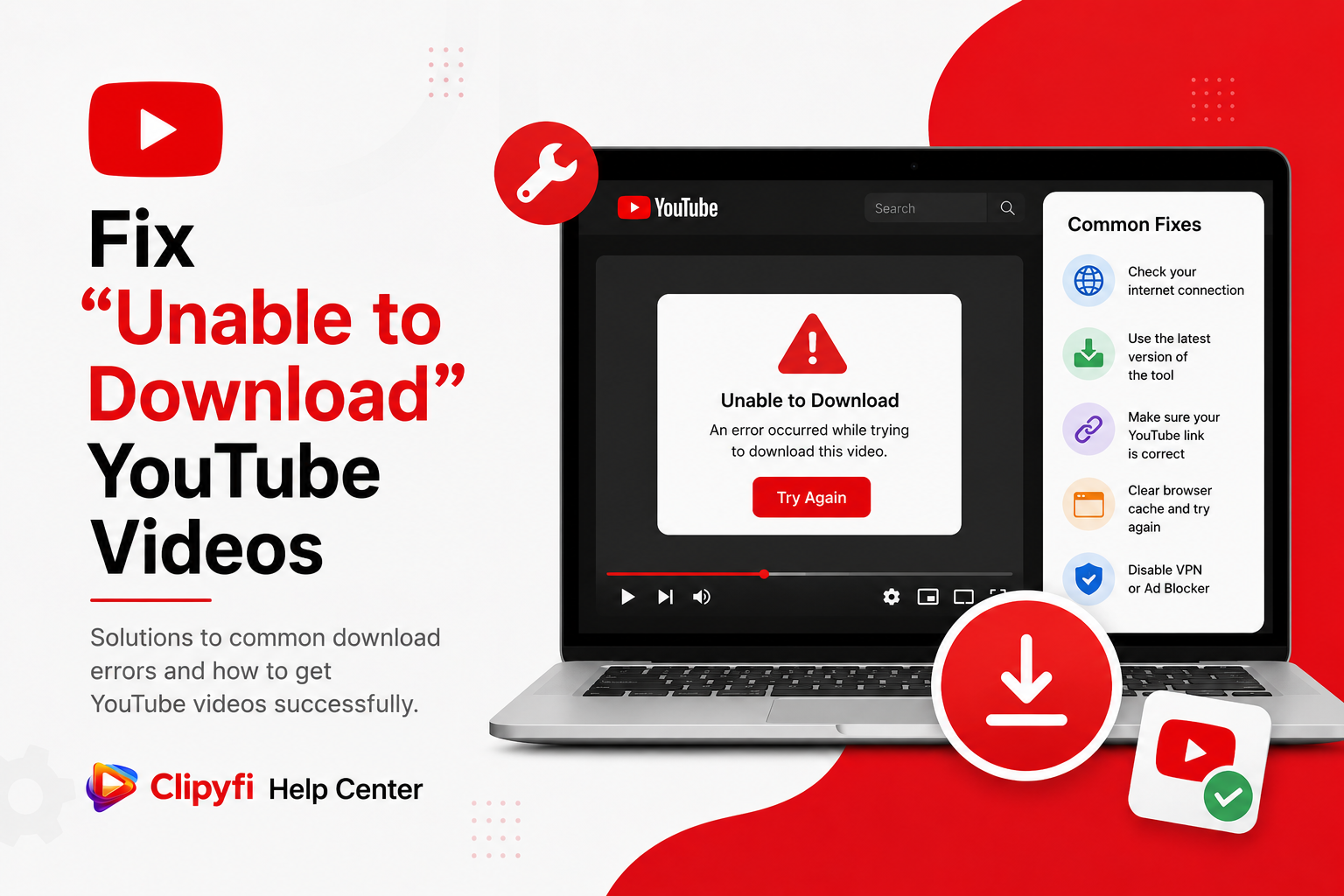
YouTube Video Downloader Not Working? Here's How to Fix It
Sometimes a YouTube video may not download successfully even after following the correct steps. This doesn't always mean there is a problem with Clipyfi. In many cases, the issue is related to the video itself, an incorrect URL, internet connectivity, or browser settings.
This guide explains the most common reasons why a YouTube download may fail and provides practical solutions to help you resolve the issue quickly.
Common Reasons Downloads Fail
Most download problems are caused by one of the following situations.
- The copied YouTube URL is incomplete.
- The video is private or unavailable.
- Your internet connection is unstable.
- The browser cache needs to be cleared.
- The video has been removed by the uploader.
- Temporary server or network issues.
Try refreshing the page and copying the YouTube URL again. A fresh URL solves many common download issues.
Problem 1 — Invalid Video URL
One of the most common causes of failed downloads is an incorrect or incomplete YouTube link. If the URL was copied incorrectly, Clipyfi may not be able to identify the requested video.
Always use the Share button on YouTube or copy the complete URL directly from the browser's address bar.
Problem 2 — Private or Restricted Videos
Clipyfi only works with publicly accessible YouTube videos. If the creator has made the video private, deleted it, or restricted access, it cannot be processed.
Problem 3 — Slow Internet Connection
A slow or unstable connection can interrupt communication between your browser and Clipyfi. This may result in longer processing times or temporary failures.
If possible, switch to a stable Wi-Fi connection and try again.
Problem 4 — Browser Cache Issues
Browsers store temporary files to improve performance. Occasionally, outdated cache files may interfere with website functionality.
Clearing your browser cache and refreshing the page often resolves unexpected download issues.
Problem 5 — Browser Compatibility
Clipyfi works best with modern browsers such as Google Chrome, Microsoft Edge, Mozilla Firefox, and Safari. Older browser versions may not support all required web technologies.
Keeping your browser updated improves security, compatibility, and download performance.
Basic Troubleshooting Checklist
- Copy the complete YouTube URL again.
- Refresh the Clipyfi page.
- Clear your browser cache.
- Restart your browser.
- Check your internet connection.
- Try another supported browser.
Advanced Troubleshooting
If the basic troubleshooting steps did not solve your problem, there are several additional checks you can perform. Many download issues are caused by temporary browser settings, network interruptions, or changes made to the original YouTube video.
Check Your Internet Connection
An unstable internet connection may interrupt communication between your browser and Clipyfi. If pages load slowly or frequently disconnect, try reconnecting to your Wi-Fi network or switching to another internet connection before attempting another download.
Disable Browser Extensions
Some browser extensions, particularly ad blockers, privacy extensions, or script blockers, can occasionally interfere with website functionality. If you experience repeated download problems, temporarily disable these extensions and test again.
Try Another Browser
If the issue continues, open Clipyfi in another modern browser such as Google Chrome, Microsoft Edge, Mozilla Firefox, or Safari. This helps determine whether the issue is browser-specific.
Verify the Video Is Still Available
Sometimes a video becomes unavailable after the link has been copied. Visit the original YouTube page to confirm that the video still exists and is publicly accessible.
Clipyfi cannot process private, deleted, age-restricted, members-only, or unavailable YouTube videos. Only publicly accessible content can be downloaded.
Best Practices for Successful Downloads
Following a few simple recommendations can significantly improve your overall download experience.
- Always copy the complete YouTube URL.
- Use an updated web browser.
- Maintain a stable internet connection.
- Avoid refreshing the page while processing is in progress.
- Download videos individually if multiple tabs are already open.
- Ensure sufficient storage space on your device.
Frequently Asked Questions
Why does Clipyfi say the video cannot be processed?
This usually happens when the video is private, unavailable, deleted, or the copied URL is incomplete. Verify the link and ensure the video is publicly accessible.
Why is processing taking a long time?
Large videos and slower internet connections may increase processing time. During periods of high traffic, processing may also take slightly longer than usual.
Can I download age-restricted videos?
No. Videos that require special access or authentication cannot be processed through Clipyfi.
Do I need to install any software?
No. Clipyfi works entirely through your web browser, so there is nothing to install.
Does Clipyfi support mobile devices?
Yes. Clipyfi works on Android phones, iPhones, tablets, laptops, and desktop computers using supported web browsers.
Can browser cache really affect downloads?
Yes. Old cached files can occasionally interfere with website functionality. Clearing the browser cache often resolves unexpected problems.
How can I report an issue?
If you've tried all of the troubleshooting steps and still experience problems, please visit our Contact page and provide the video URL along with a brief description of the issue.
Conclusion
Most YouTube download problems can be resolved within a few minutes by verifying the video URL, checking your internet connection, clearing your browser cache, or using a different browser. Following the recommendations in this guide will help ensure a smooth and reliable experience when using Clipyfi.
If you're looking for additional tutorials, visit the Clipyfi Help Center where you'll find detailed guides covering YouTube videos, Shorts, playlists, Instagram downloads, Facebook downloads, and many other frequently asked questions.
Our Help Center is regularly updated with new tutorials, troubleshooting guides, and platform-specific tips to help you get the most out of Clipyfi.
Related Help Articles
- How to Download YouTube Videos
- How to Download YouTube Shorts
- How to Download YouTube Playlists
- How to Download Instagram Reels
- How to Download Facebook Videos
Thank you for choosing Clipyfi. We hope this troubleshooting guide helped you identify and resolve your download issue quickly.