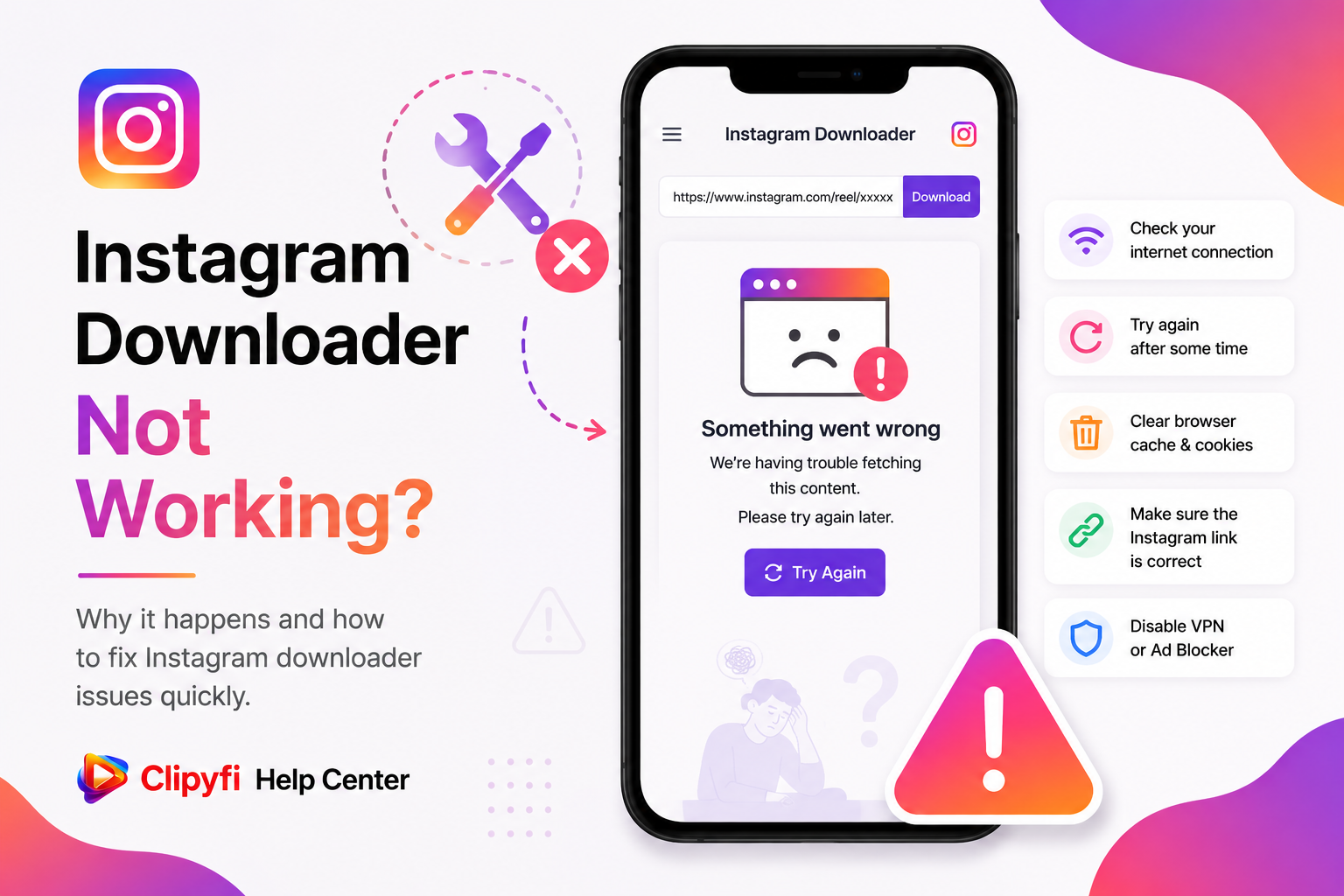
Instagram Downloader Not Working? Here's How to Fix It
If you're trying to download an Instagram Reel, video, photo, or Story but the downloader isn't working, don't worry. Most download problems are caused by incorrect links, private accounts, expired Stories, or temporary network issues. In many cases, the problem can be resolved within a few minutes by following a few simple troubleshooting steps.
This guide explains the most common reasons why Instagram downloads may fail and provides practical solutions to help you successfully download publicly available Instagram content using Clipyfi.
Why Instagram Downloads Sometimes Fail
Instagram regularly updates its platform and privacy settings. Because of this, some content may not always be available for downloading. Understanding the cause of the problem is the first step toward fixing it.
- The copied Instagram URL is incomplete.
- The account is private.
- The post has been deleted.
- The Story has already expired.
- Your internet connection is unstable.
- Your browser cache is causing temporary issues.
Before trying advanced troubleshooting, copy the Instagram link again and refresh the Clipyfi page. This simple step resolves many common issues.
Problem 1 — Incorrect Instagram URL
The most common reason downloads fail is an incomplete or incorrect Instagram link. If only part of the URL is copied, Clipyfi may not be able to identify the requested content.
Always use Instagram's Copy Link option or copy the complete URL directly from your browser's address bar.
Problem 2 — Private Instagram Account
Instagram protects content shared by private accounts. Photos, videos, Reels, and Stories from private accounts are not publicly accessible and therefore cannot be downloaded using Clipyfi.
Clipyfi only supports content that is publicly available. If an account is private, the content cannot be accessed.
Problem 3 — Deleted or Removed Post
If the creator deletes a post after you copied its link, the content becomes unavailable. In this situation, Clipyfi cannot retrieve the requested media because it no longer exists publicly.
Problem 4 — Story Has Expired
Instagram Stories automatically disappear after 24 hours unless the creator saves them as Highlights. Once a Story expires, it is no longer publicly accessible and cannot be downloaded.
Problem 5 — Slow Internet Connection
A weak or unstable internet connection may interrupt communication between your browser and Clipyfi. Try switching to a reliable Wi-Fi network or waiting until your connection improves before trying again.
Basic Troubleshooting Checklist
- Copy the Instagram URL again.
- Refresh the Clipyfi page.
- Check whether the account is public.
- Confirm the Story has not expired.
- Restart your browser.
- Try another supported browser.
- Clear your browser cache.
Advanced Troubleshooting
If the basic troubleshooting steps did not resolve the problem, there are a few additional checks you can perform. Many issues are temporary and can often be fixed by updating your browser or verifying that the Instagram content is still publicly available.
Clear Browser Cache
Your browser stores temporary files to improve loading speed. Occasionally, outdated cache files can interfere with website functionality. Clearing your browser cache and refreshing the page often resolves unexpected issues.
Disable Browser Extensions
Some browser extensions, especially ad blockers or privacy tools, may prevent certain website functions from working correctly. Temporarily disabling these extensions can help identify whether they are causing the problem.
Try Another Browser
If you're still experiencing problems, open Clipyfi using another modern browser such as Google Chrome, Microsoft Edge, Mozilla Firefox, or Safari.
Clipyfi cannot process private accounts, expired Stories, deleted posts, or content that is no longer publicly accessible on Instagram.
Best Practices
- Always copy the complete Instagram URL.
- Download content while it is still publicly available.
- Use an updated web browser.
- Maintain a stable internet connection.
- Avoid refreshing the page while processing is in progress.
- Respect copyright and creator ownership.
Frequently Asked Questions
Why is my Instagram link not working?
The URL may be incomplete, the post may have been removed, or the account may be private. Verify the link and ensure the content is publicly available.
Can I download content from private accounts?
No. Clipyfi only works with publicly accessible Instagram content.
Why can't I download an Instagram Story?
The Story may have expired after 24 hours or may belong to a private account.
Does Clipyfi require an Instagram account?
No. Public Instagram content can be processed without signing into Instagram.
Can I use Clipyfi on my phone?
Yes. Clipyfi works on Android phones, iPhones, tablets, laptops, and desktop computers using a supported browser.
Does Clipyfi save my Instagram downloads?
Clipyfi is designed to process download requests efficiently. Please review our Privacy Policy to learn more about how your information is handled.
Is Clipyfi free?
Yes. Clipyfi allows users to process publicly available Instagram links without requiring registration.
How do I report a problem?
If you've tried every solution in this guide and still experience issues, please contact our support team through the Contact page and include the Instagram URL along with a brief description of the problem.
Conclusion
Most Instagram download problems can be solved by verifying the URL, checking whether the account is public, ensuring the Story has not expired, and using a stable internet connection. By following the troubleshooting steps in this guide, you can quickly resolve the most common issues and continue downloading publicly available Instagram content with Clipyfi.
Our Help Center is regularly updated with new tutorials, troubleshooting guides, and frequently asked questions covering Instagram, YouTube, Facebook, and other supported platforms.
Visit the Clipyfi Help Center to explore more step-by-step tutorials, troubleshooting guides, and answers to common questions.